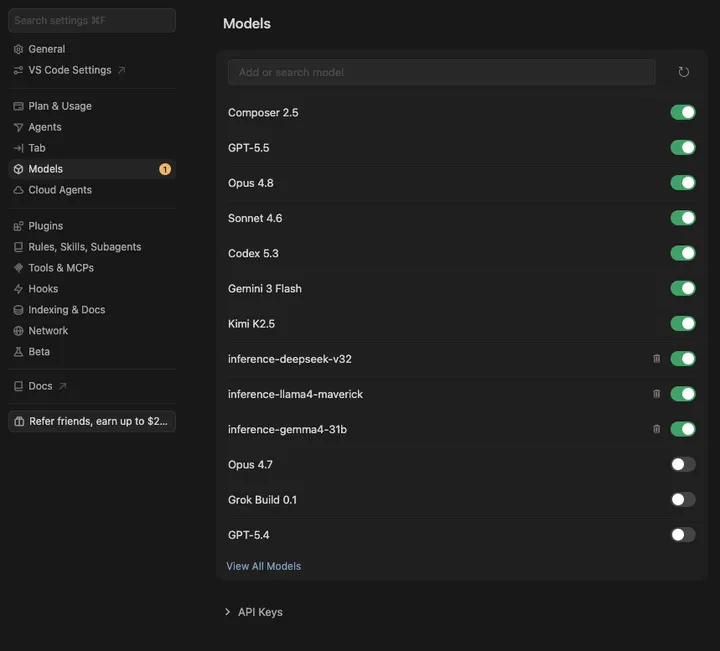
Step 1. Open Cursor Settings
In Cursor, open Settings and go to the Models tab. Scroll down to the API Keys section.
Step 2. Add Your PHOENIQS API Key
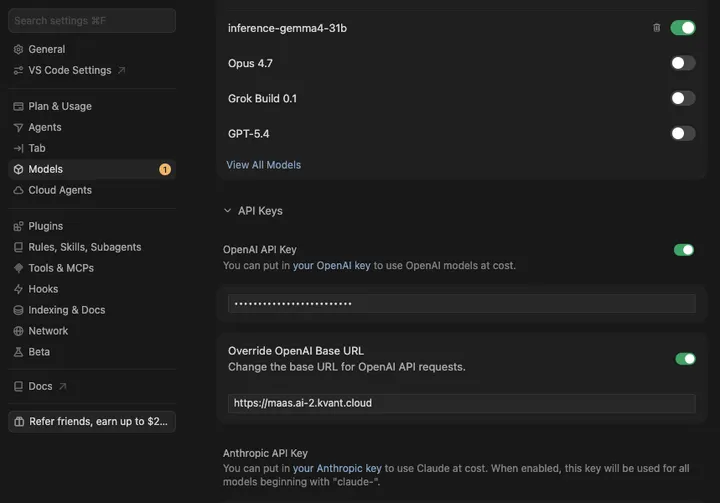
Paste your PHOENIQS API Key into the OpenAI API Key field, then set Override OpenAI Base URL to:
Make sure both toggles are enabled (green).
Step 3. Add Your Model
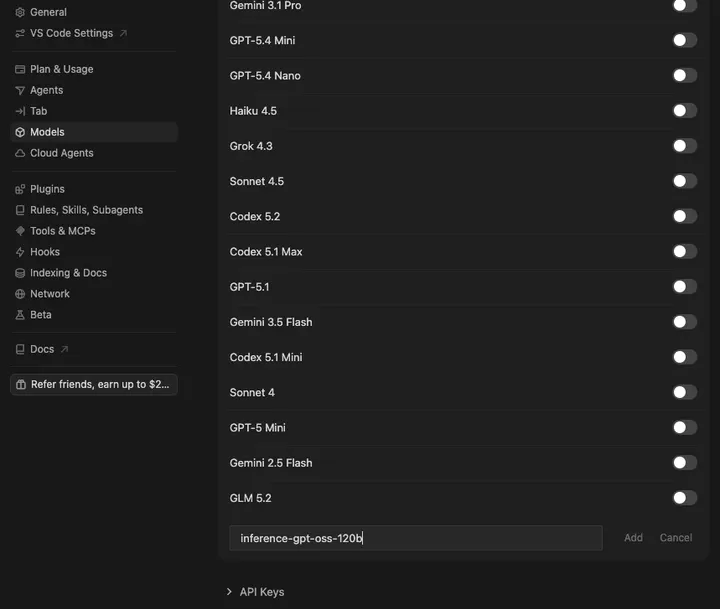
At the bottom of the model list click on "Add a model". Get the exact model name from the PHOENIQS Active Models list. For example:
Recommended: Use
inference-glm5for the best Cursor experience. GLM 5 is optimized for agentic engineering and long-horizon coding, and is the only model that fully supports Agent, Chat, and Plan modes in Cursor.
Paste the name into Cursor and enable the toggle for the newly added model.
Step 4. Test It
Open Ask mode with Cmd+L / Ctrl+L and select your model.
Send a message. All requests now route through your PHOENIQS API, which uses our sovereign GPUs hosted in Switzerland.