1. Sign in
Open Data Pools and click Sign in with PHOENIQS SSO. Use your PHOENIQS account, the same one you use for PHOENIQS Chat and the Phoeniqs Console.
You land on Data Pools, the list of the pools you can use. Every user already has one, AI Chat, which holds the files you added to chats for file search. See Chat and agents.
2. Create a pool
- Click Create data pool.
- Under Where does the content come from?, leave Uploaded files selected.
- Choose the Access: Private, for you and the members you add, or, on Data Pool Dedicated, Organisation, for everyone in your organisation. You can change it later. See Access.
- Enter a Name, such as
Contracts 2026. - Add a Description of what the pool holds. Agents read it to decide whether the pool is relevant, so a sentence or two is worth it.
- Click Create.
The source cannot be changed later. The name and description can, under the pool's Details.
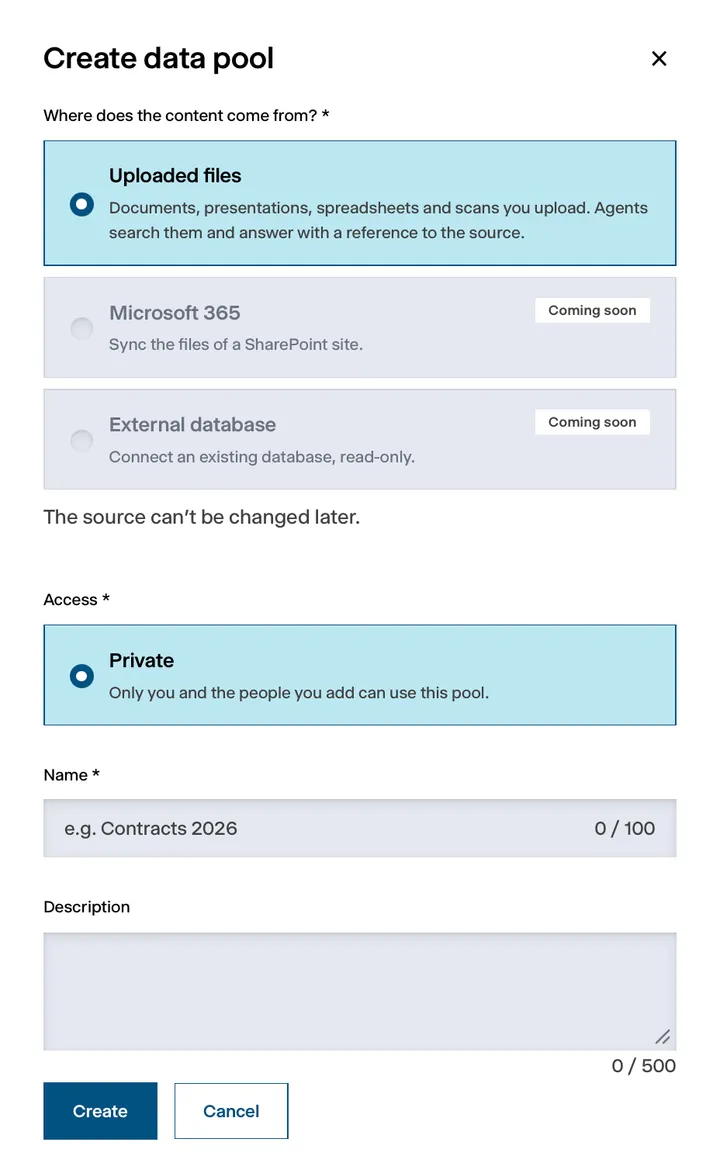
The Create data pool dialog
3. Upload documents
Drag files onto the upload area of the new pool, or click it to choose them. PDFs, Office documents, spreadsheets, text and HTML work, and so do scans and images, which are read by OCR. You can drop many files at once: Upload progress shows how far they are.
Each file shows Queued, then Processing, then Searchable, and the list updates by itself. Searchable means agents can find it. Complete follows once its description is written. Large or scanned documents take longer. See Documents.
Administrators also see Test retrieval, where they can try a question and see the passages an agent would receive.
4. Use it with an agent
Agents reach your pools through the Data Pools MCP server. In a PHOENIQS Chat connected to your Data Pool, an agent can list, search and query every pool you can read. See Chat and agents.