The Documents section of an Uploaded files pool lists its documents and is where you upload new ones.
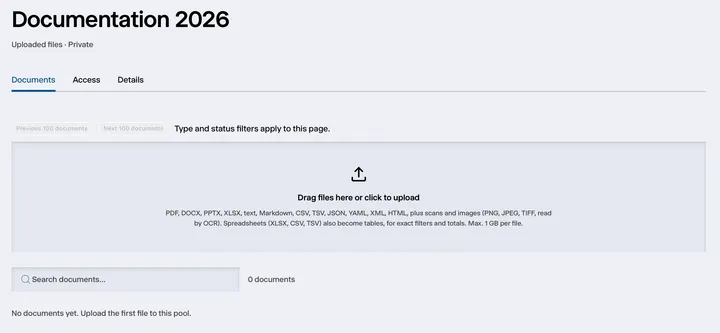
Uploading
Drag files onto the upload area, or click it to choose them. You can drop many files at once.
Each file can be up to 1 GB, and uploads count towards your Data Pool's storage. Files are checked by their content, not their name, so a file whose content does not match an accepted type is refused.
If one file of an upload is refused, the others carry on, and a message names each file that could not be uploaded, with the reason.
To upload thousands of files from a script, see Bulk and API uploads.
Upload progress
While files are uploading, Upload progress at the top of the pool shows how many files are sent, and then how far processing has come: how many are stored, searchable, complete, queued, processing or failed, and how many were duplicates. It stays when you reload the page.

Stop remaining work stops the files that have not finished. Documents that are already searchable stay in the pool, and the original of every stopped file is kept.
Files already in the pool
Before uploading, Data Pools checks each file against the pool. When it finds a duplicate, it asks what to do:
Replace removes the earlier file from the pool. When several files are duplicates, tick Do the same for the other files like this to answer once for all of them.
The document list
The list shows 100 documents at a time. Previous 100 documents and Next 100 documents page through it, and the type and status filters apply to the page shown.
Status
After the status, · OCR means Data Pools read the text from an image or scan itself, and · Layout that it also read the page layout. low confidence means the OCR result may be incomplete; see Confidence.
Retrying a failed document
A failed document stays in the pool with the reason it failed:
The pool's owner can click Retry on a failed document to process it again, without uploading it again. With two or more failed documents, Retry failed processes all of them again. Nothing is deleted, and the documents are processed with the pool's current settings.
How documents are read
When a document is uploaded, Data Pools:
- Converts it to text. PDF, DOCX and PPTX files are converted by Docling, an open-source document converter. It keeps headings, lists, tables and reading order, and reads scanned pages with its built-in OCR. Spreadsheets keep their sheets and tables. Text, CSV and HTML files are read as they are.
- Describes pictures. Diagrams, photos and screenshots in PDF, DOCX and PPTX files get a short description from an AI vision model, so what they show can be found by search. Small pictures, such as logos, are skipped.
- Reads images. PNG and JPEG files are transcribed by an AI vision model, with a built-in OCR engine as a check that nothing was missed. TIFF files are read by the built-in OCR engine.
- Splits and indexes the text into passages, searchable by meaning and by keyword.
- Describes the document. An AI model writes a description and extracts metadata: the people, organisations, topics, locations and timeframe it covers.
- Updates the pool's summary, the overview of the pool's contents that agents read first.
The first four steps decide when a document is Searchable. The description and metadata follow in the background and never hold up an upload: once they are done, the document is Complete.
If Docling cannot convert a PDF, Data Pools reads it itself. Pages with a text layer are kept as they are, and scanned pages are transcribed by an AI vision model. Invoices, orders and forms with a text layer come out as structure: fields (such as invoice number, date or IBAN), line items and totals, alongside the plain text. Agents can ask for this structure directly.
AI models used
All of them run on the PHOENIQS AI Model Service in Switzerland, which does not use your data to train models. Details on a document shows how it was read. When a model changes, the changelog says so.
Confidence
Every image or scan that Data Pools reads itself gets a confidence between 0 and 1. Below 0.6, the document is marked low confidence in the list, and agents are told so too. Check those documents: a poor scan, handwriting or an unusual layout can leave gaps in the text.
Document details
Details on a document shows:
Deleting a document
Delete removes the document, its passages, description and metadata, and any tables built from it, at once. Agents stop finding it immediately. It cannot be undone.
Test retrieval
Test retrieval shows what a search of this pool returns, before you rely on it in an agent. It is visible to administrators only. Type a question in plain language and click Search. Each result is a passage, with its passage number and a relevance score.
If the right passages do not come back:
- Check the document is Searchable and not low confidence.
- Phrase the question the way the document does. Searches combine meaning and keywords, so the document's own terms help.