The Agents tab is where you work with the coding agent. You describe what you want, and the agent reads and changes the files in your project, runs commands and reports back.
The tab can show the agent in either of two ways. You choose in Settings → General, under Agents tab:
The choice is kept in your browser, so you can try both. Everything below — your projects, credentials, tools and conversations — is the same either way.
The web view (default)
The Web view is the OpenCode web interface, the same one the AI BUILD Link and opencode-desktop clients use. It is what the tab shows by default, as a full application inside the tab:
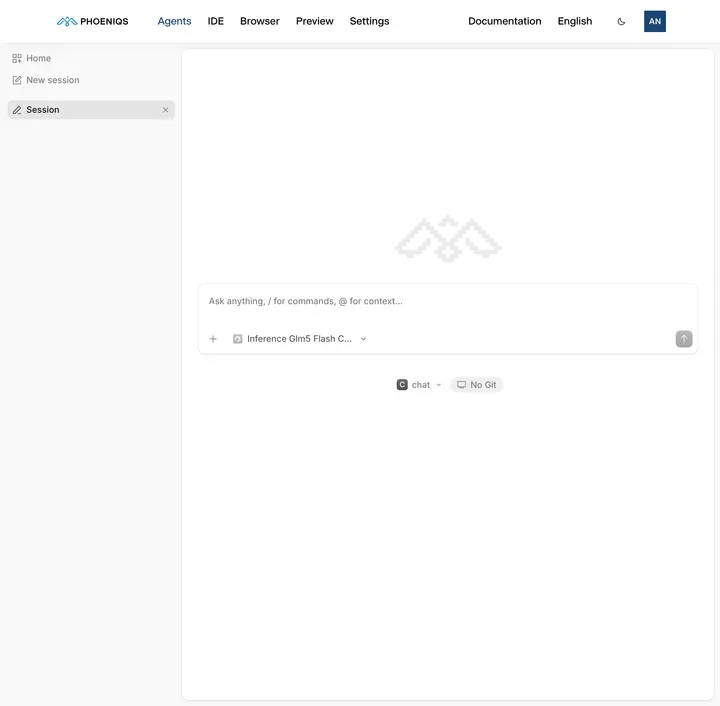
- your sessions in a list on the left, each opening in its own view;
- the conversation in the middle, with the agent and model pickers, the reasoning and tool calls as they happen, and the composer at the bottom;
- settings inside the tab, reduced to Preferences and Appearance — everything else (credentials, tools, agents, the company settings) stays in the workspace's own Settings;
- your projects from the workspace, so you can start a session in any of them without importing anything;
- the workspace's language and theme, which follow the ones you chose in Settings.
Two more settings appear next to Agents tab while Web view is selected: Web view tabs (sessions down the left sidebar, or along the top bar) and Web view font size.
The terminal view
Choose Terminal (TUI) in Settings → General and one terminal fills the tab, showing the OpenCode TUI (terminal user interface). There is no toolbar: the tab is the agent's own interface, and the controls live inside it.
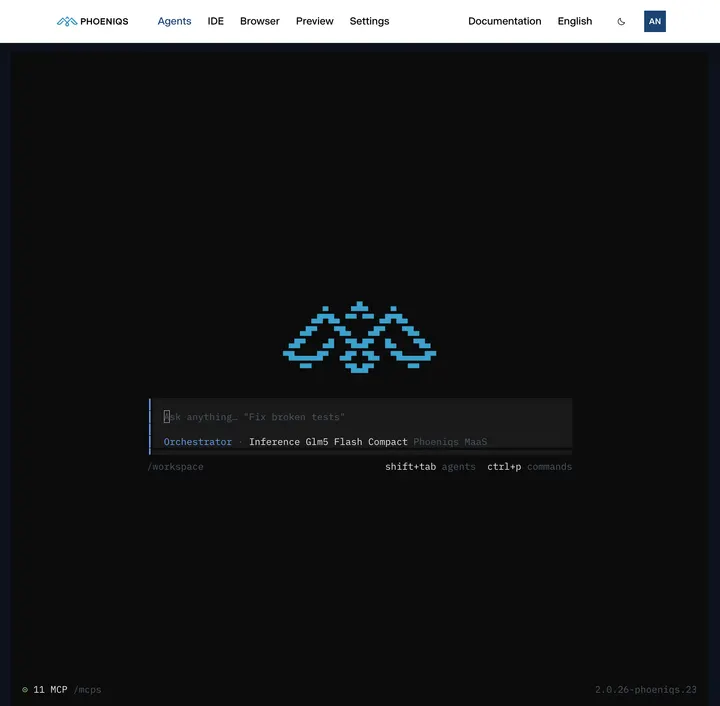
When no terminal is open, the tab shows New terminal. Starting one opens the TUI in your workspace; inside it, its own commands take you everywhere:
The status line at the bottom of the TUI shows the agent in use (Build by default), the model serving it, and the connected tools. If the terminal ends or fails, the tab shows what happened with Restart and Close terminal — terminals are never restarted automatically, and your conversations are kept.
Build and Plan
The agent comes with two modes you switch between with shift + tab in the
terminal, or with the agent picker in the Web view:
- Build, the default unless your company settings name another one. It changes files and runs commands, within the permissions it is configured with.
- Plan, read-only. It explores the codebase and plans the work without changing anything. Use it to agree on an approach before letting Build implement it.
Your company settings can add agents, choose a different default, and require the agent to ask before it edits a file or runs a command. The full list of agents is under Settings → Agents. The model a new session starts with is set under Settings → Providers & Models.
Adding files to a prompt
Paste a file into the agent, or drag it in, and it is uploaded to your workspace
with its path added to the prompt. Images and PDFs appear as [Image 1] or
[PDF 1]. Text and data files, and Word, Excel and PowerPoint documents, are
added as a path the agent opens. Each file can be up to 10 MB.
Attached files are stored in a hidden .attachments folder in your workspace.
Files older than 24 hours are removed the next time you attach one, so move
anything you want to keep into a project.
Leaving and coming back
Closing the browser tab, reloading the page or moving to another tab ends
nothing. Your session keeps running in the workspace, so the agent carries on
with a long task while your laptop is closed. The next time you open the
workspace, the running session is picked up again: in the Web view it is the
open conversation in the session list on the left, and in the Terminal (TUI)
you press ctrl + x l to list the sessions of the current folder.
Conversations are stored on the workspace's persistent volume, so they also survive a restart, an upgrade and a redeployment of the workspace. If your history looks empty after importing a workspace archive, the import replaced it with an older export; see Workspace data and restarts.
Changing the agents, rules, skills, commands or tools of your company settings
needs no restart — they reach a running workspace within seconds. Only the parts
that cannot reload live — the image the workspace runs, and your personal
env.sh — need one. See
Restart the box.
What the agent can reach
Inside your workspace the agent works with:
- Your project files, the checkouts under
/workspace/<project>/, read and write. See Projects. - Git, acting as the credential for that host in Settings → Credentials. Commits and pushes carry that identity.
- Installed tools, including
git,svn,node,pythonand thecodegraphcommand. - Code intelligence. On projects with CodeGraph enabled, the agent can answer structural questions about the codebase without reading every file. See CodeGraph.
- The browser, a real web browser it can drive while you watch. See Browser.
- Further tools you connect under Settings → MCP Servers.
Running commands yourself
For a plain shell, open the integrated terminal in the IDE tab. It runs as the same user as the agent and sees exactly the same files, so there is no handover between your work and the agent's. A dev server you start there shows up in the Preview tab.
Good to know
- One disk, two writers. The agent and the IDE share one filesystem. Holding a file open with unsaved changes while the agent rewrites it can overwrite one set of edits.
- Restart terminals after an import. After importing a workspace archive, an open terminal keeps its view of the disk from before the import until you start a new one.